Drag mouse in desired direction first, then optionally type a length and press Enter to lock it. Click to place the corner. The preview segment shows a live dimension label at the cursor.
🧭 Navigate (pan / zoom)
Two-finger scroll pans. Pinch zooms. Space + drag pans. Zoom stays centered on the cursor.
⌨️ Type a segment length
Enter a segment length (optional), then press Enter. Move the cursor to choose direction, then press Enter again to commit the segment.
📌 Snapping
Segments snap to horizontal/vertical by default. Hold Shift for stronger straight snapping. Hold Cmd (⌘) while moving to temporarily disable snapping.
💾 Close and optimize
Click near the first point to close the loop, then click Optimize → Manual Adjustment.
Walk clockwise around the outside of your building. External = you turn RIGHT (building stays on your right) Internal = you turn LEFT (into a notch/alcove)
Buttress = no corner, wall continues straight
🏗️ Wall Input - Complete Guide
Purpose: Define each wall of your building by selecting corner types and entering wall lengths.
The system optimizes dimensions to align with ICF block modules for efficient construction.
Step 1: Select Start Corner Type
For the first wall, choose the corner type where the wall begins:
Choose the corner type where this wall ends (connects to the next wall).
Step 3: Enter Wall Length
Input your desired length in the box
The system optimizes it to align with ICF block modules
You'll see the optimized length displayed - this is what will be used
💡 Optimization Example:
If you enter 5500mm, the system might adjust it to 5486mm to align perfectly with block courses. This small change
makes construction much easier!
Step 4: Set Compass Orientation (After Wall 1)
After completing Wall 1, a compass picker will appear to set where North is relative to Wall 1.
Why this matters: Elevation pages will show wall aspects (e.g., "Wall 1 - North Elevation")
How it works:
Wall 1 is shown as a fixed arrow pointing upward (↑)
Drag the compass dial to rotate it, aligning the "N" with the actual North direction
Or enter the angle directly: 0° = North, 90° = East, 180° = South, 270° = West
Example: If Wall 1 faces East, rotate the dial so "N" points to the left (270°)
Think of it like: You're standing at your building with Wall 1 behind you - where is North from your viewpoint?
🧭 Understanding the Compass:
If you set Wall 1 to face "West" (270°), then Wall 2 (90° clockwise) will face North. The system automatically
calculates all wall aspects from this.
Step 5: Subsequent Walls (Clockwise)
For walls 2, 3, 4, etc.:
Start corner is automatic - determined by the end corner of the previous wall
Select end corner type for where this wall finishes
Enter wall length - system optimizes it
Work clockwise around your building
Step 6: Closing the Building
For the last 1-2 walls, the system shows intuitive dimensions to help close the shape. These are
calculated to make the building close properly. You can still override them if needed.
Step 7: Understanding the Visual Preview
Outer wall line (thick): The outside face of your ICF walls
Inner wall line (thin): The inside face - shows your interior space
Dimensions: Shown on the outer face
Concrete Core button: Click to see a cross-section diagram of your wall thickness
✅ Ready to Continue?
Once your wall layout is complete and compass is set, click "Continue" to move to the Openings stage where you'll
add doors and windows.
💬 Send Feedback
✅
Thank you for your feedback!
🏗️ Wall Input - CAD Drawing Guide
Purpose: Draw your building perimeter using CAD-style click-and-drag interface. The system automatically detects corners and optimizes dimensions for ICF construction with real-time cost calculations.
🎯 CAD-Style Drawing Interface
Basic Drawing Workflow
Click to start: Click anywhere to place your first corner point
Drag to set direction: Move mouse to set wall direction - live preview shows the wall
Type length (optional): Enter exact dimension and press Enter to lock the length
Click to place corner: Click to place the next corner point
Repeat: Continue clicking corners to trace your building outline
Navigation Controls
Mouse wheel: Zoom in/out
Space + drag: Pan the drawing view
Two-finger scroll: Pan (trackpad)
Pinch: Zoom (trackpad)
Keyboard Shortcuts
Enter: Apply typed length
Escape: Undo last point
Shift: Stronger horizontal/vertical snap
Cmd (⌘): Disable snapping temporarily
💰 Real-Time Cost Information
Live cost updates: See costs change as you draw each wall
Pre-optimization popup: Appears when you close the perimeter
Waste calculation: Shows material waste before optimization
💡 Cost Understanding:
The pre-optimization cost shows what walls would cost WITHOUT module efficiency. After clicking "Optimize", the system shows savings from using full ICF modules.
🔧 Drawing Features
Smart Snapping
Default snap: Walls snap to horizontal/vertical for clean rectangles
Manual override: Hold Cmd to draw at any angle
Strong snap: Hold Shift for stronger straight alignment
Length Input
Visual mode: Just click and drag - no typing needed
Precise mode: Type exact length + Enter for accuracy
Units: Metric (mm) or Imperial (ft in) based on project setup
Live preview: Green dimension follows cursor showing current length
Corner Detection
Automatic detection: System determines corner types automatically
No manual selection: Corners are inferred from drawing direction
External corners: When building turns outward
Internal corners: When building turns inward
🏁 Completing the Drawing
Closing the Perimeter
Click near start point: Click close to your first corner to close the loop
Visual feedback: System shows when perimeter is closed
No intuitive closing: You must manually click near the start point
Optimization Process
Click "Optimize": After closing perimeter, click to optimize
Module alignment: Walls adjust to 203.2mm (8") ICF modules
Corner calculations: System accounts for corner block dimensions
Efficiency gains: Reduced cutting, waste, and installation time
👁️ Visual Features
Live preview line: Green line shows next wall before placing
Dimension labels: Live dimensions follow cursor
Wall preview: See walls appear as you draw
View styles: Toggle between Blueprint and Classic White
Cost indicators: Real-time cost updates as you build
⚡ System Features
Undo Functionality
Escape key: Remove last placed point
Undo button: Click to undo last corner
Continue drawing: Keep adding points after undo
Reset Options
Reset button: Clear all points and start over
Start fresh: Useful for major changes or mistakes
📏 Measurement Systems
Metric: Millimeters (mm) - enter as "3000"
Imperial: Feet and inches - enter as "24 6" for 24'6"
Set in Project Setup: Choose units before starting
✅ Completion & Next Steps
Close perimeter: Click near start point
Review costs: Check pre-optimization popup
Click "Optimize": Apply ICF module optimization
Continue to Openings: Add doors and windows
Elevations: Set wall heights and profiles
🎯 Pro Tips:
• Start with a rough outline - you can optimize later
• Use snapping for clean rectangular buildings
• Type exact dimensions for precision when needed
• Click close to first point to close the perimeter
• Review pre-optimization costs before optimizing
📐 Wall Length Optimization: How It Works
The Challenge: ICF blocks come in fixed module widths of 203.2mm (8 inches). When you enter a wall length, the system optimizes it to work with these fixed modules while accounting for corners.
Step 1: Account for Corners
Each corner has a minimum length based on the ICF system:
152mm core wall: Shortest corner = 397mm
203mm core wall: Shortest corner = 448mm
For a wall with corners at both ends, we subtract the corner lengths:
Net Length = Input Length - (2 × Corner Length)
Example: 152mm core wall, 4500mm input
Net Length = 4500mm - (2 × 397mm) = 3706mm
Step 2: Divide by Module
The net length is divided by the 203.2mm module:
3706mm ÷ 203.2mm = 18.24 modules
Step 3: Round to Nearest Module
We round to the closest whole number (minimizes waste):
18.24 modules → 18 modules (rounded down)
Step 4: Add Corners Back
Finally, add the corner lengths back:
Optimized = (18 × 203.2mm) + 794mm = 4451.6mm
💡 Why This Matters:
✅ Blocks align perfectly with the modular grid
✅ Minimal cutting required
✅ Reduced waste
✅ Faster installation
✅ Maintains structural integrity
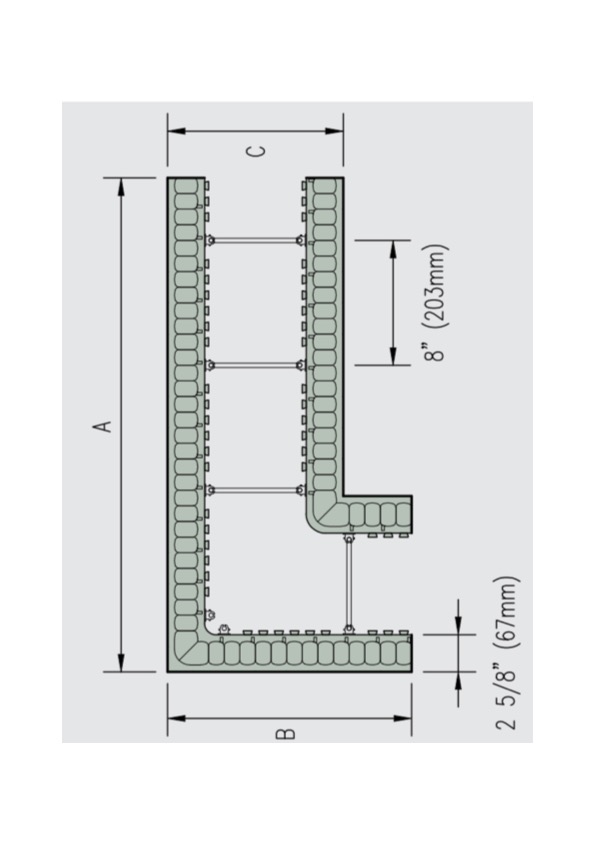
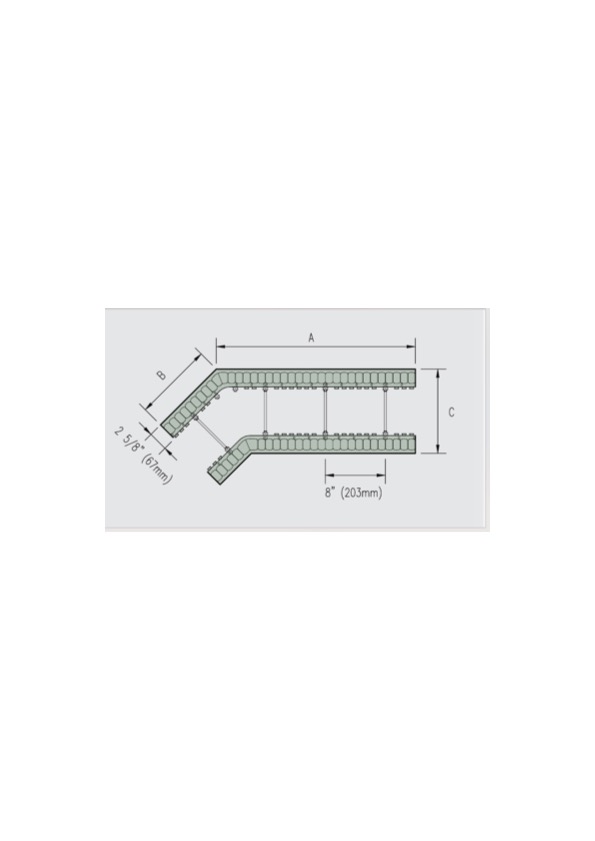
📐 Understanding ICF Corner Blocks
ICF corner blocks are specialized pieces that connect walls at angles. Understanding how they work is essential for accurate layout and quantities.
Key Characteristics of Corner Blocks
Reversible: Corner blocks can be flipped over to work as either internal OR external corners
Asymmetric Design: Each corner has a LONG side and a SHORT side
Flexible Sizing: The long side can be cut down to match the short side, and the offcut is fully usable
Core Width Variations: Dimensions change based on concrete core width (152mm, 203mm, 254mm, etc.)